
Search Knowledge Base by Keyword
Reset Passwords
The following information will provide Step-by-Step instruction for changing a password on the various systems that make up the C2C3 Cloud.
While you are welcome to use the same password for the service provided by C2C3 we strongly suggest the password is different than any other online service you use. If you have not already please review the Security Best Practices.
All Passwords on the C2C3 Cloud platform MUST meet the following Password Policy:
- Complex and at least 12 Characters
- Contain at least one Uppercase Letter
- Contain at least one Lowercase Letter
- Contain at least one Number
- Contain Punctuation
- Not be similar to previous passwords
C2C3 will not require that passwords are changed other than to change from the default provided password. We will suggest that passwords are changed at least once a year.
Failure to use a secure password may result in the access of data by others that may guess\crack this information. As a Loan Originator, it is your sole responsibility to secure your Client’s Data and a strong password is one way to do so.
POINT Logon
- Open the POINT application and Logon
- File –> Change Password
- Enter the old password once and the new password you would like to use twice
- Click OK
- Logon to POINT using the new Password
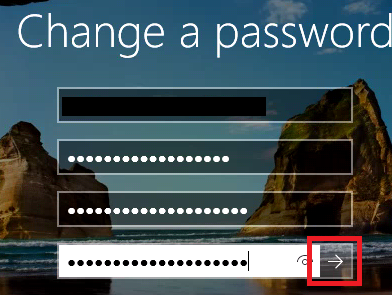
C2C3 Cloud Desktop
- Log into the C2C3 Cloud Desktop using your preferred method
- Press CTRL-ALT-END (Mac users must press fn+control+(alt/option)+right arrow)
- Select Change Password
- Enter your current password
- Enter a new password
- Confirm the new password
- Press the Arrow to set
OwnCloud
- Visit the C2C3 OwnCloud website – The URL was provided in your Welcome Letter
- Logon to OwnCloud using your OC Username and Password
- Once logged on, click your Username located in the upper-right of the Screen
- From the Drop-down click Settings
- Confirm \ Enter your email address. Your email address will be required if you want to be able to reset a password via email
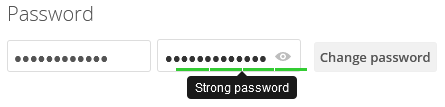
- Under the Password Section
- Enter your current password
- Enter a new password making sure the Strong password requirement is meet
- Click the Change password button
Outlook \ Outlook Web Access
Passwords for hosted Outlook and OWA should be changed every 60 days. We recommend setting a reminder to proactively change your password as opposed to letting it expire.
- Open a Web Browser
- Visit: https://mail.pcc1.cloud/owa
- Logon using an email address and password
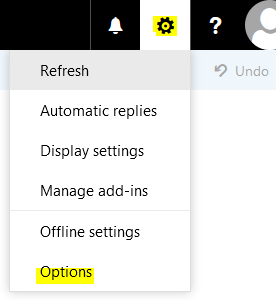
- In the upper right corner, click the Gear Icon
- Select Options
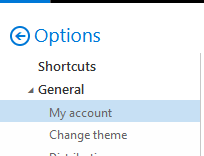
- On the left of the screen select General–> My Account
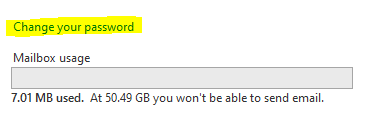
- Locate the Change your password link and click it
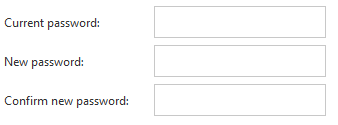
- Enter the current password
- Enter the new password twice
- Click Save
- Update the password in Outlook or Mobile Device