
Search Knowledge Base by Keyword
Print from the C2C3 Cloud Desktop using a web browser
When working in the C2C3 Cloud Desktop via a web browser, printing is handled a bit differently as the web browser cannot “pass” your printer settings to the Desktop. Instead you will be prompted with a PDF that will open in another browser tab (or Adobe) and that tab will have access to your local printers.
This process works well for printing one or two Forms, but be aware that each Form will open in its own tab. If you need to print an entire Print Group we suggest following these steps to connect your Printer to the Cloud Desktop.
It is also possible to export to PDF.
Printing Loan Forms
- Open a Loan File in Point
- Select File–> Print
- Select the forms. In this example we will use the C2 Anti-Steering Form
- Set the Output Option to Print
- Click the Print Button

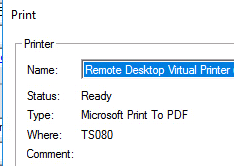
- Select the Remote Desktop Virtual Printer & click OK
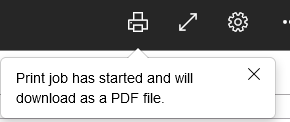
- The Print Job will start and the web browser will provide an update
- The first few prints will provide the following prompt. To prevent the prompt from returning, check the box to “Do this automatically…..”

- Review the Form in the next tab
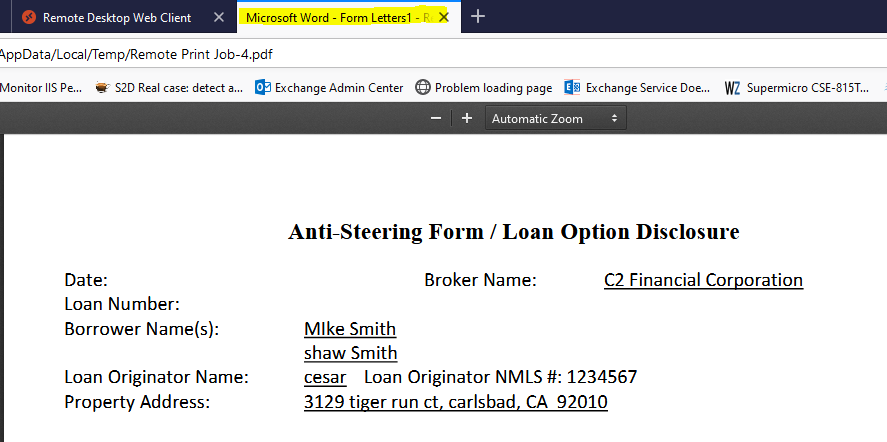
- Print from the web browser selecting you local printer
Was this post helpful?
Let us know if you liked the post. That’s the only way we can improve.