
Search Knowledge Base by Keyword
Install Point Central
The following KB provides step by information on installing the Point Central Application on your PC.
Prerequisites
- An active Point Central Seat with C2 Financial
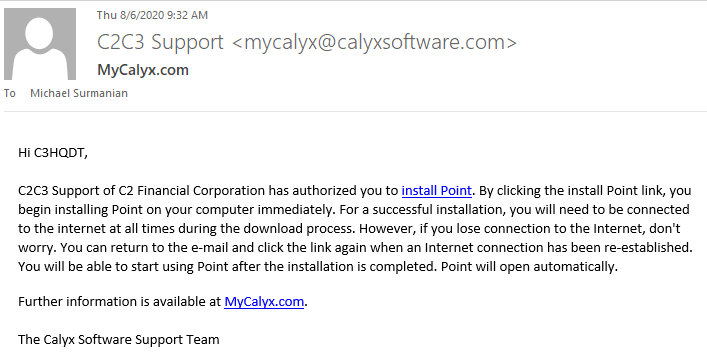
- A Mycalyx.com e-mail containing the Install Link (example below)
- Administrative Rights on the PC Point will be installed on
- Ensure the PC meets the Point System Requirements
Remove a previous version of Point
You may skip this section if Point is not currently installed on this PC. If Point was installed it will need to be removed using the steps below to ensure its configuration does not conflict with Point Central. Users of the “stand-alone” version of Point may contact C2C3 Support to discuss the import of previous Point Files.
- Open Control Panel
- Open the Programs and Features Control Panel
- From the list locate the Calyx Installer and Uninstall it
- From the list locate the Point Installer and Uninstall it

- Reboot the PC
- Logon and re-open the Programs and Features Control Panel and check to make sure, the Calyx & Point Program entries have been removed.
Installing Point Central
- Install all available Windows Updates (select Start > Settings > Update & Security > Windows Update , and then select Check for updates)
- Locate the Mycalyx.com email containing the installation Link. Please save this email somewhere safe as it will be needed for future installs.
- Click the Install Point Link inside the email
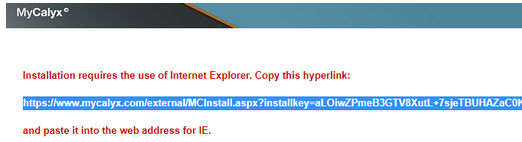
- If the Default Browser on the PC is not set to Internet Explorer the following Prompt will be shown
- Click Start and type Internet Explorer
- Select Internet Explorer from the top of list on the Start Menu

- Copy the link from the ‘other’ browser and paste it into the Internet Explorer Address bar
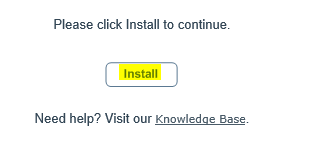
- Click the Install Button
- Click the Install Button on the second screen prompt
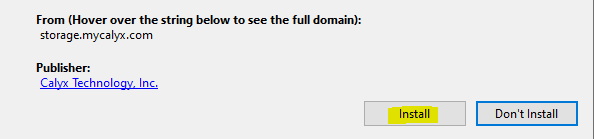
- Allow the software to download
- When prompted click YES to Install
- Allow the install to complete
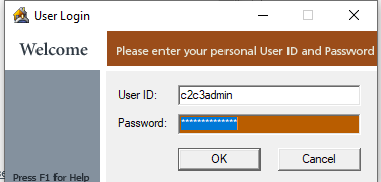
- Logon to Point Central using the credentials provided in the Welcome Letter
Opening Point
During the installation, the Point Icon will be placed on the Desktop of the User that installed Point. To open the app, the icon may be clicked from the Desktop

or the Start Menu.

Next Steps
Now that you’ve installed Point, here are some links to help you get started.
- The Point Workflow
- Getting Started Videos
- Setup a Credit Service
- Point Interfaces
- Setting Up Zip
- C2C3 Knowledge Base
Was this post helpful?
Let us know if you liked the post. That’s the only way we can improve.