
Search Knowledge Base by Keyword
Connect a PC to the C2C3 Cloud
Connect a PC to the Cloud Desktop
The steps below will integrate the C2C3 Cloud Desktop with a Windows 10 PC providing a better user experience and the ability to use Dual Monitors. These steps are also documented in a Video.
Prerequisites
1. Windows 10 PC
2. C2C3 Cloud Account information, provided via email
Steps to Connect
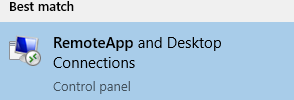
- Click the Windows Start Menu and type: RemoteApp and Desktop Connections
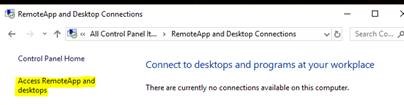
- Click Access RemoteApp and desktops
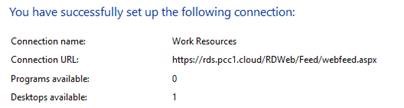
3. Copy and Paste the following: https://rds.pcc1.cloud/RDWeb/Feed/webfeed.aspx
Please Note: this URL uses .cloud in place of .com

4. Click NEXT twice
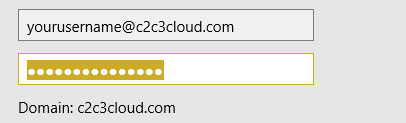
5. Enter your UN + PW, check the box to REMEMBER & click OK
YourUserName@domain.com
PW: See One Time Secret Link
6. Finish
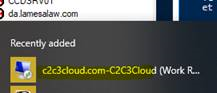
7. Then click the Start Menu and locate the new icon to Logon
Was this post helpful?
Let us know if you liked the post. That’s the only way we can improve.