
Search Knowledge Base by Keyword
RDWeb Certificate Error
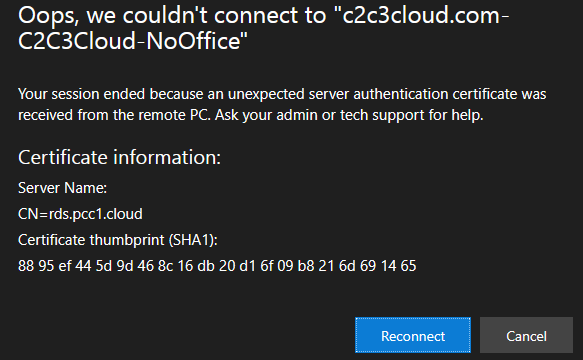
Every year the SSL Certificate that secures remote access has to be updated. When this occurs, web browsers will need to be refreshed using the steps below.
In most cases, once at the logon screen pressing CTRL-F5 will fix the issue.
Steps by Step
- Start by closing all web browser windows so the browser is completely closed
- Open the browser and visit the Logon Screen

- Hold down the CTRL Key and press the F5 key a few times
- Logon to the Site
- Load the Remote Desktop
If the issue persists, we suggest clearing the Browser Cache. The following links will redirect to the support pages of each browser.
- Chrome –https://support.google.com/chrome/answer/2392709?co=GENIE.Platform%3DDesktop&hl=en
- Firefox – https://support.mozilla.org/en-US/kb/how-clear-firefox-cache
- Edge – https://support.microsoft.com/en-us/microsoft-edge/view-and-delete-browser-history-in-microsoft-edge-00cf7943-a9e1-975a-a33d-ac10ce454ca4
If the issue persists when using a preferred web browser, please download/use another web browser to connect to the platform and contact support for assistance.
Was this post helpful?
Let us know if you liked the post. That’s the only way we can improve.