
Search Knowledge Base by Keyword
Share a folder via OwnCloud
This KB will document how to share an folder with other C2C3 Cloud Users
Via Windows
- Navigate to your OwnCloud Folder. This folder may be on C2C3 Cloud Desktop or your local PC.
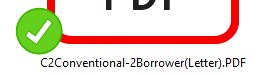
- Ensure the Icons have a Green Check identifying they are all synced with the Server.
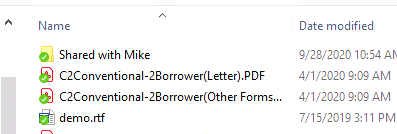
- Locate an exiting folder or create a new folder to be shared.
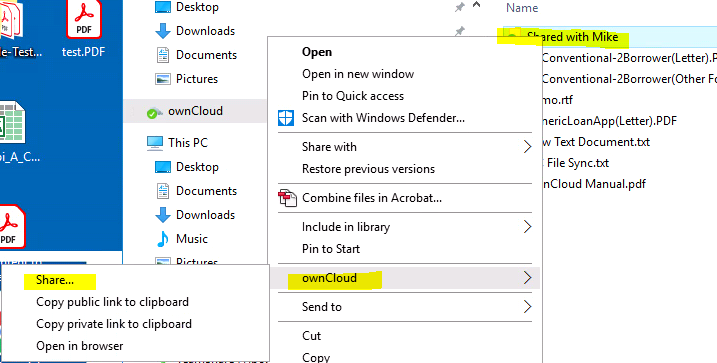
- Right click the folder to be shared and select OwnCloud–> Share
- Type the initials of the user you wish to share the folder with.
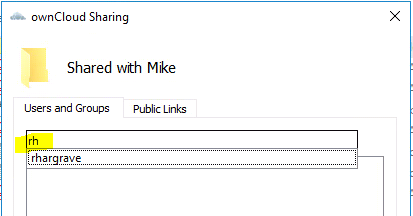
- Press Enter to select.
- Assign User Permissions, Default is to allow the use full rights.

- Click the close button.
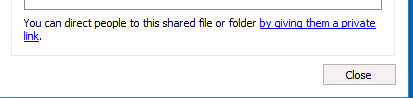
- Note the icon for the folder has changed, signifying the folder is shared with someone.

Edit User Rights
At some point it may become necessary to edit the user rights or remove them. Those steps are documented below
- Locate the folder.
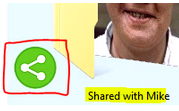
- Right click the folder and select OwnCloud–> Share (Fig. 4 above)
- Edit the User Rights by checking/unchecking the boxes.
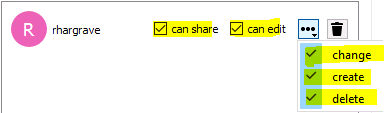
Remove User from Share Folder
- Right click the folder and select OwnCloud–> Share (Fig. 4 above)
- Click the Trash Bin to remove rights.
- Close.

Share a folder via OwnCloud Via the Website
The following steps may be followed to share a folder via the OwnCloud Website
- Logon to the OwnCloud website. If OwnCloud is part of you Plan the URL was provided in the Welcome Email.
- Locate the Folder you would like to share. Please Note: Any items in this folder or its sub-folder will be shared with the user you select.

- Left-Click this Icon and a window will open
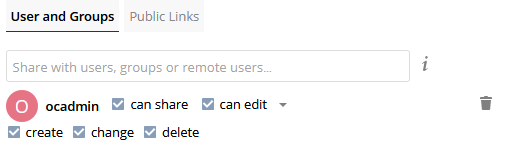
- Type the name of the OC user that you wish to share the Folder with
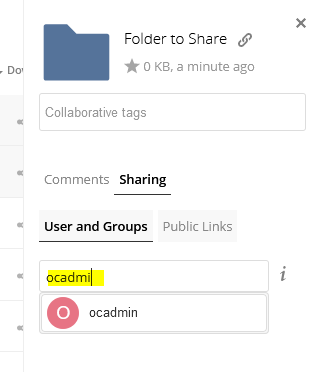
- Review the Permissions to give them
- Click the “X” in the upper Right corner
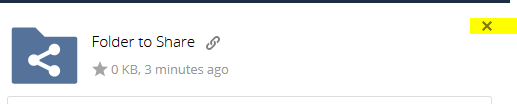
- Validate the folder say “Shared”

Was this post helpful?
Let us know if you liked the post. That’s the only way we can improve.