
Search Knowledge Base by Keyword
Outlook will not connect to Gmail
Background
Outlook will not connect to Gmail
Validate your Password
The first step in troubleshooting Outlook is to confirm your password.
- Visit Gmail.com
- Logon by entering your username and retyping your password password
- If you are logged on already – Log Out and Log back In
Validate IMAP is configured
- Logon to Gmail
- Open Settings
- Click Forwarding and POP/IMAP
- Configure the Settings. We recommend POP3 is Disabled and IMAP is Enabled
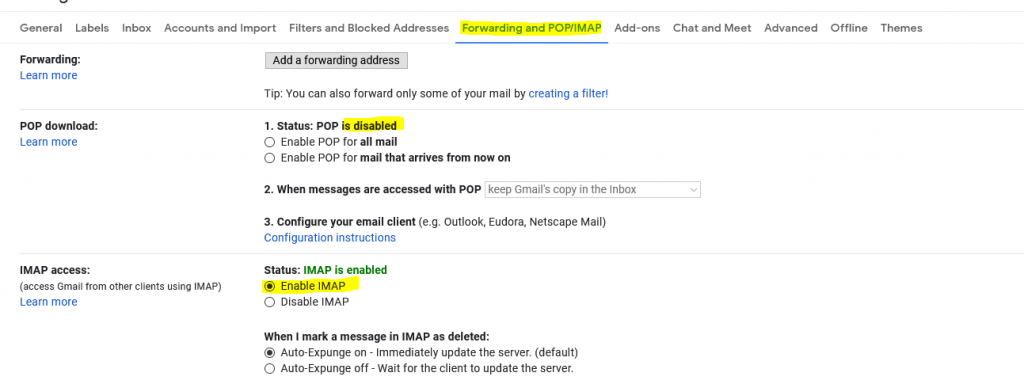
- Save
Check Outlook Settings
Please Note: This posting was written based upon using IMAP to connect to Gmail. If your copy of Outlook uses POP3 the screens will be slightly different.
- Open Outlook
- Click File
- Click the Account Settings Drop-Down and Select Account Settings
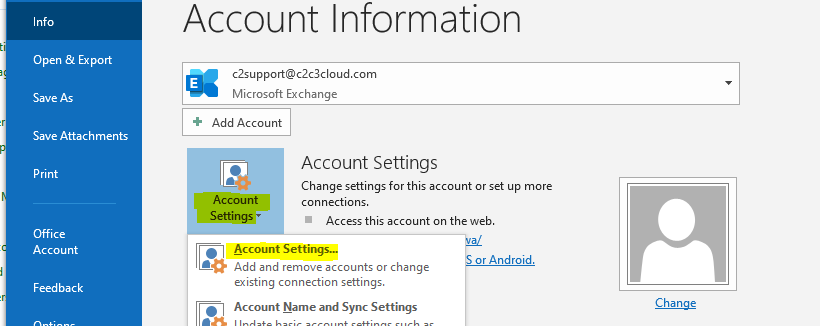
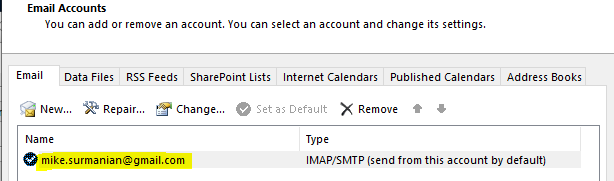
- Double click on your Gmail Account
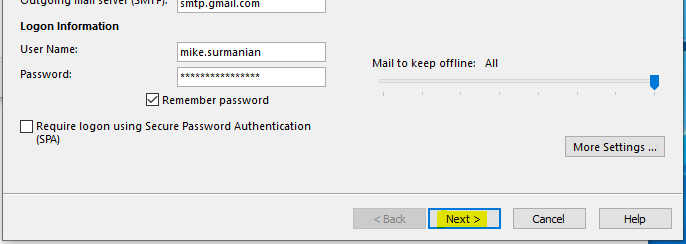
- Verify Account Settings match Gmail’s Instruction
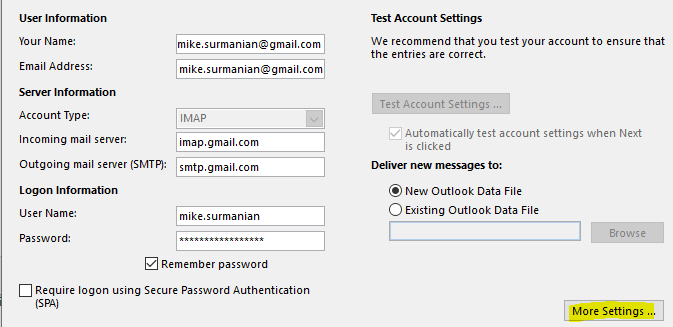
- Click More the More Settings button
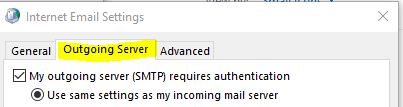
- Click the Outgoing Server tab
- Ensure the box is checked and the top circle is checked
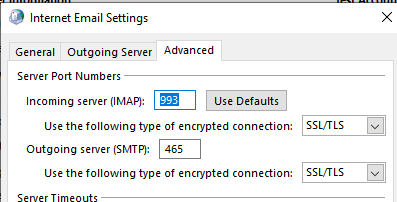
- Click the Advanced tab
- Validate the Server Ports and Drop-downs.
- IMAP Users may reference this Google Post
- POP3 Users may reference this Google Post
- As mentions, these screen shots are for the IMAP Settings
- Click OK
- Click NEXT on the Settings Screen
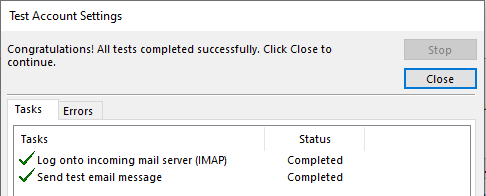
- Validate the Tests Complete
- Click Finish
If the Test Failed please continue
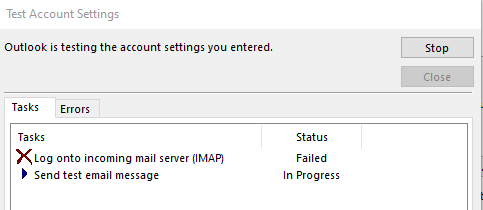
Create an App Password
If Two-factor Authentication is enabled on your Google Account, an App Password may need to be generated and that password will be sued in place of your standard Gmail password
- Review Google’s post on App Passwords
- Go to your Google Account.
- Select Security.
- Under “Signing in to Google,” select App Passwords.
- Using the Drop-downs select the following
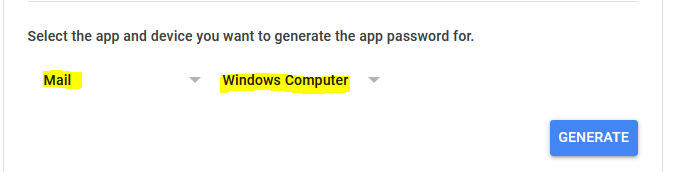
- Click GENERATE
- Copy or Write Down the Password. Secure this password like you would any other. Do not share it.
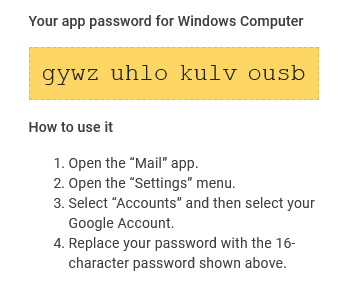
- Paste the Password as the only characters inside of Outlook Gmail Settings
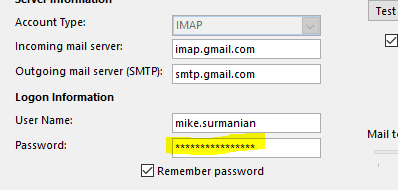
- Click Next to Validate
- Click Close
- Finish to close
A new app password will be needed for each install of Outlook
Was this post helpful?
Let us know if you liked the post. That’s the only way we can improve.