
Search Knowledge Base by Keyword
Connect to C2C3 Cloud using the Microsoft RDP App
Prerequisites
- Download the Microsoft RDP Application from your device’s app store.
- Apple Desktop \ Laptop – https://itunes.apple.com/us/app/microsoft-remote-desktop-10/id1295203466?mt=12 (OR https://tinyurl.com/PCCApple)
- iOS – https://itunes.apple.com/us/app/microsoft-remote-desktop/id714464092?mt=8 (OR https://tinyurl.com/PCCIOS)
- Android Device – https://play.google.com/store/apps/details?id=com.microsoft.rdc.android&hl=en_US (OR https://tinyurl.com/PCCANDR)
- C2C3 Cloud Account information, provided via email
Steps to Connect
- Open the Microsoft RDP app on your Device
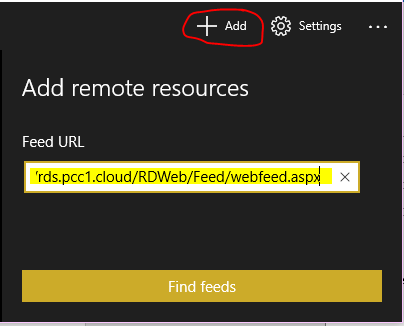
- Click the + or Add Button
- Choose Remote Resources type or Paste the link: https://rds.pcc1.cloud/RDWeb/Feed/webfeed.aspx
- Please make sure there is not a space at the end of the link
- Please Note: the number 1 not l –> pcc(one).cloud
- Please Note: this URL uses .cloud in place of .com
- Click Find Feeds
- Enter
- YourUserName@domain.com
- PW: See One Time Secret Link
- Click Connect
- Verify the C2C3 Cloud is listed as an Icon
To Connect
- Open RDP App
- Click C2C3 Cloud Icon
- Enter Username and Password but check box to Remember
- Connect – If you receive a certificate prompt you can also click Don’t Ask/Remind
Was this post helpful?
Let us know if you liked the post. That’s the only way we can improve.